A group site can have more than one menu, but a main navigation menu will be created already. Administrative Members are able to add, remove, modify, and rearrange menu items.
Bilingual menus are achieved by maintaining two parallel menus - one for each language. The menus are set to only appear in the target language interface, so the Japanese menu is hidden when users are using the English interface, and vice-versa.
Go to Tab Menu > Group > Menus.
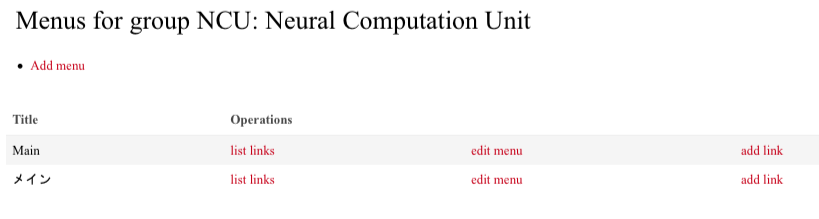
Link "list links" enables you to rearrange links and select individual links for Editing or Deletion.
Link "edit menu" does not enable you to do much more than change the name of the menu itself.
Link "add link" lets you add a link to the menu. See "Add a Menu Link".
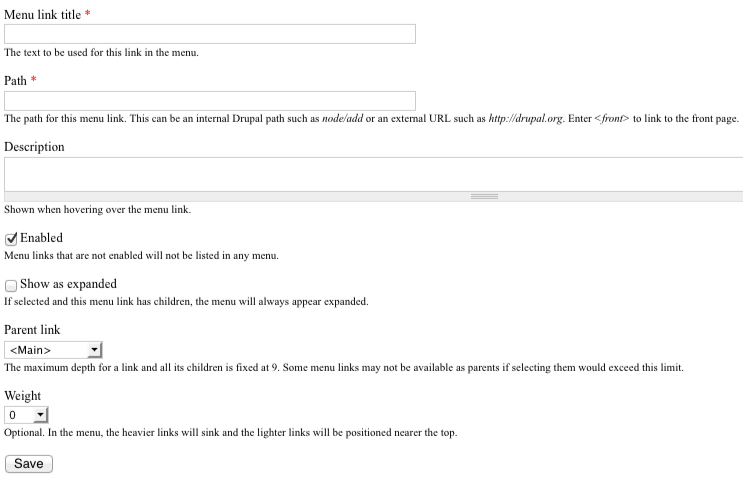
Go to Tab Menu > Group > Menus > Add Link.
Enter the Menu Link Title, which is what will appear in the menu as the link.
Enter the Path. As the help message under the text box indicates, this can be an external URL or an internal Drupal path. In most cases, you will be adding a link to a new post, so you will use the pattern "node/nid" where "nid" is the numerical Node ID. Read about how to Find the Node ID
The Description field can be set so that mousing over the menu item will show a message, but this should be used sparingly because it is very distracting for users.
The Parent Link indicates under which other menu item this link should appear.
Weight allows you to set the relative order of the links, but it is easier to use "list links" to rearrange menu items.