Table of Contents
Website content can be edited in the browser using CKEditor:
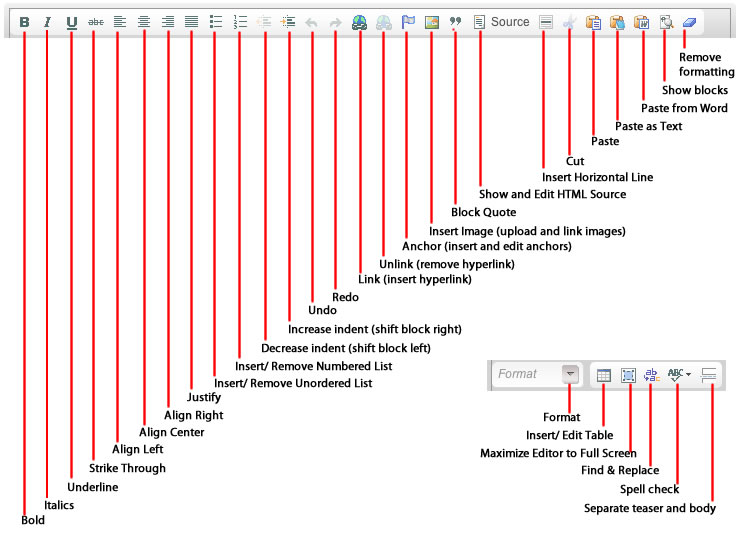 |
If you know the special properties of the toolbar buttons, you will find that editing can be very easy:
- Align
Align Left, Align Center, and Align Right are only relevant for paragraphs and other blocks.
- Lists
Insert/ Remove Numbered List and Insert/ Remove Unnumbered List are best used after entering all your text. You can next lists within other lists, but editing nested lists usually has unexpected results.
- Anchor
Creating an anchor allows you to make a hyperlink that takes the user directly to another part of the same webpage or to a specific part of another webpage. Once you have created the anchor, make a note of the name you gave it. When you make your link, append '#anchorname' (no quotes) to the end of the URL.
- Insert Image
Click this button to insert images in the page. The file upload mechanism is integrated into this process.
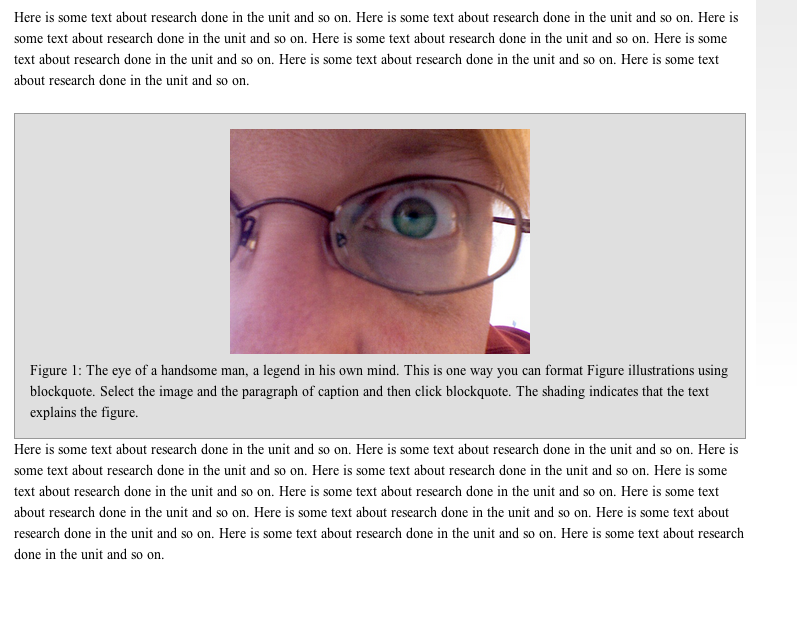
- Blockquote
For research content, you can use the blockquote to enclose figures and their explanation texts in a block of gray background.
- Show and Edit HTML Source
If you prefer to edit the html directly, you can. If you do not properly close your tag pairs or make errors, the editor will change and correct your code, however.
- Paste as Text
Paste in content with all formatting and other information removed.
- Paste from Word
If you copy and paste content from Word, a browser, and other applications like Evernote, you will inadvertently paste in styles, formatting codes, and other content that will interfere with the layout and consistency of the webpage. It will also make your page difficult to edit and maintain. Use "Paste from Word" when pasting from Word, web pages, and other applications that contain formatting information. Things like bold, italics, underline, indents, etc. will be retained, but font faces, id's, and other application-specific information will be filtered out.
- Show Blocks
When editing a page, it is difficult to know if a part of the page is set as a header, a paragraph, or a div that was copied from a browser or Word document. Use this feature to see a line around all blocks which identifies the format of that block of text.
- Remove Formatting
Select a block of text and then click this button to remove formatting like bold, italics, Word styles, and other information, but it will leave hyperlinks and paragraphs.
- Format
The Format pull-down changes to show you the format of a block when you click inside that block of text.
You don't have to select the entire block then change the format. Just click inside a block, open the pull-down, and select the format you want to give it.
- Insert/Edit Table
Use this button to create tables. Click inside a table and then click this button to change the table properties.
You can also click a table and use right-click/ctrl-click to get a choice of options for modifying the table, specific rows, and specific columns.
You can select a block of cells and then use right-click/control-click to get a selection of options for modifying cell properties.
- Separate teaser and body
When you create a Post, which is somewhat like a blog post, the system will use the first few lines as the teaser when it shows a list of posts on a single page. You can use this button to determine where the teaser text ends.