Putting a file on the page for download is similar to adding an image in that you must first upload the file to the server and then link to it.
In the browser, select the block of text that you want to be the link to the file.
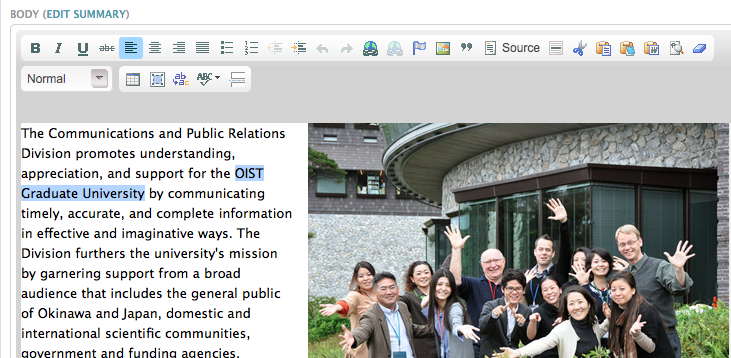
Click the Link button
 .
.The editor's "Link" dialog box will open.
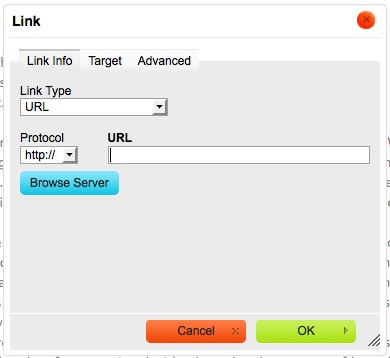
You can type a full URL like "www.youtube.com" in the URL field if you want to create a link to another website, but if you want to upload a file and then link to it from the web server, click "Browse Server".
If you are going to link to a PDF or downloadable file, the default settings are fine, but if you want to link to an image or an external website, it is best to open the link in a new window.
Click the "Target" tab at the top.
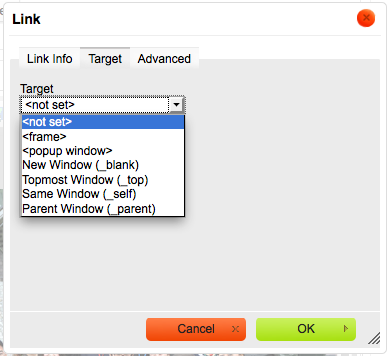
Open the "Target" drop-box and select "New Window (_blank)".
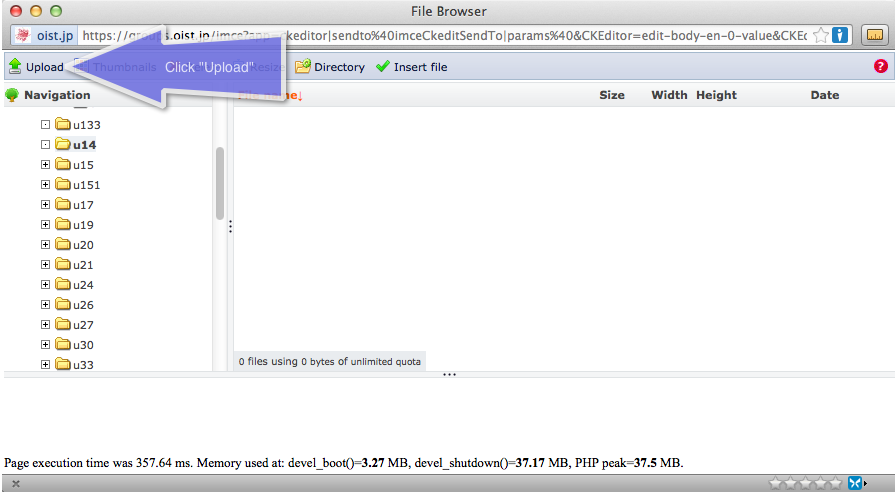
A window showing files and directories will open. This is the web server's file directory, and you will start in a directory with a title that begins with "u" followed by a number. This is your user directory for uploads.
If you have already uploaded files, they will be visible here. Just double-click to select.
If you would like to upload a file, click "Upload" in the top left corner of the window.
Then click the "Select" button to open a file browser for your PC which will allow you to select the file you want to upload.
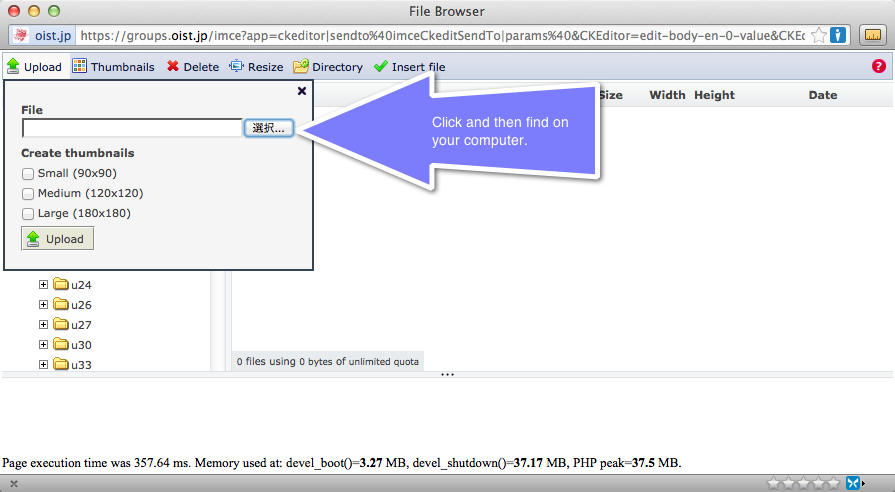
Once the file is selected, hit the "Upload" button to copy the file from your PC to the server.
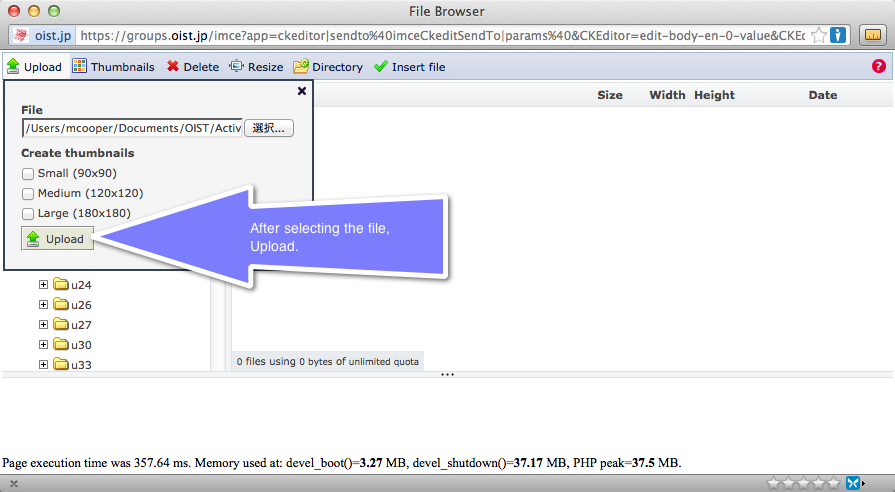
You can repeat the upload process as many times as you like to put a number of files in your directory for use in the page.
Once the file is uploaded, double-click to insert the link.